

A well built client onboarding form replaces back and forth emails, repeated questions, manual copy and paste, and lost attachments with one clean process that runs the same way every time. New clients know what to expect, your team gets complete information on the first try, and nobody spends Monday morning chasing missing details.
What a good client onboarding form collects
Start with the outcome, not the fields. A good form should let your team start work without asking the client for anything else. Most forms need four groups: contact and company details, project details, access and assets, and commercial details.
Ask for the decision maker up front, because many delays happen when the form is filled in by someone who cannot approve the next step. Ask for one primary goal in the client’s own words, because that answer helps you spot scope problems early. If you serve different client types, use separate paths in the same form rather than one long form for everyone.
Keep the form short enough to finish
Long forms lose people. A form finished in five to eight minutes gets better data than a perfect form that is never submitted. Ask only for what you need before work starts, and move nice to have questions to later steps.
Use clear labels. Instead of “Requirements”, ask “What should we deliver first, and what does done look like?” Instead of “Budget”, ask “What budget range have you set aside for this first phase?” Mark only the truly required fields as required.
Use conditional logic to ask only relevant questions
Conditional logic shows or hides questions based on earlier answers. A client who picks “Website redesign” sees questions about pages, content, and hosting. A client who picks “Ongoing support” sees questions about current tools, access, and priority. Neither sees the other’s questions.
Start with one branching question, such as service type, then build two or three follow up paths, no more. Check every path before launch, including what happens when a client changes an answer. A common mistake is a hidden required field that blocks submission even though the client never saw it.
Automate what happens after submit
The biggest saving comes after the client clicks submit. Without automation, someone must read the submission, copy details into a spreadsheet, send a confirmation, create a folder, assign the work, and remind the client about missing files. That is where the ten hours a week usually go.
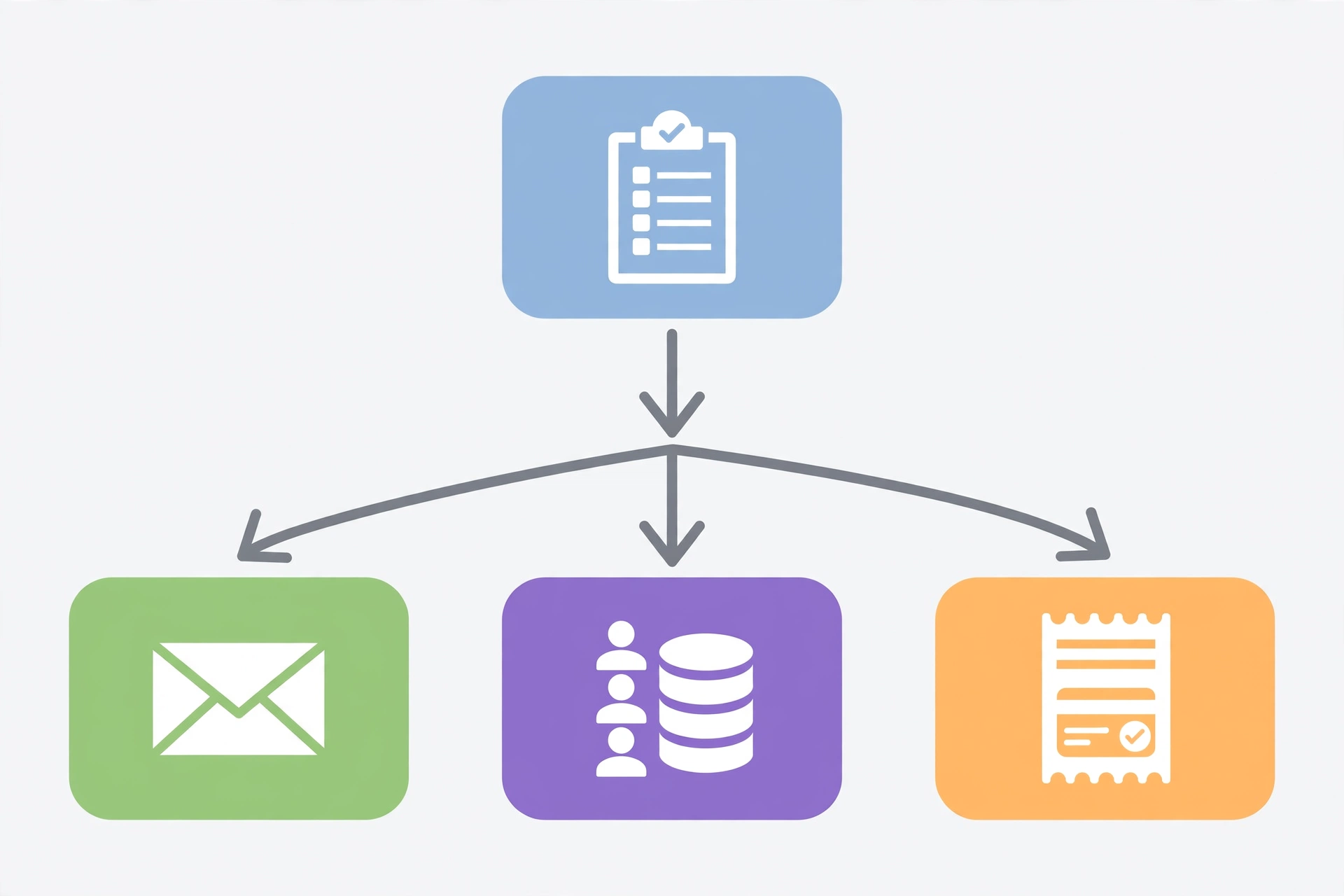
With automation, the form does that work. On submit, the client gets one confirmation email with next steps, your team gets one internal alert with the key details, a task is created with the client name and deadline, and files are saved in a folder named after the client. Test the full flow with a test submission before launch, and check where each email, task, and file ends up.
Connect the form to your CRM
When a client onboarding form is connected to your CRM, new client data goes to the right place automatically. The contact is created or updated, the project is opened, and the submission is attached to the record. Nobody retypes the client name, email, or project details into a second system.
Map fields before you connect anything. Decide which form field goes to which CRM field, and what happens if the contact already exists. A common error is creating a duplicate contact every time an existing client fills in a new form. Match on email address, and test with an existing contact.
Add payments and agreements without extra steps
Many flows also need a deposit, a first payment, or a signed agreement. Doing those in separate emails adds days. Adding them to the onboarding flow keeps momentum, because the client is already focused and ready to start.
If you take a deposit, add a payment step after the main questions, with a clear amount and a plain description of what it covers. If you need a signed agreement, add an e-signature step at the end, with the key terms in plain language. If your process needs a quote before payment, collect details first, then send a quote with a payment link, so the client is never surprised by a payment step.
An illustrative example: a design studio that stopped chasing details
The following is an illustrative example, not a real client case.
A small design studio used to onboard clients by email. A new client would send a brief, the studio would reply with questions, the client would reply with half the answers, and the studio would ask again. Files arrived in separate emails, sometimes with no file names. The owner spent about two hours per new client on admin, and with five new clients a week, that was ten hours lost.
The studio replaced email with one new client onboarding form. It asked for contact and approver details, project goal, deadline, brand files, and billing contact. On submit, the client got a confirmation, the studio got an internal alert, a task was created, and files were saved in a client folder. The owner now spends about fifteen minutes per client checking the submission, instead of two hours. Across five clients a week, that is roughly eight to nine hours saved.
Common mistakes that cost time instead of saving it
First, asking for everything at once. A form with forty fields feels thorough, but clients rush, skip, or give vague answers. Ask for what you need to start, then collect the rest in the project itself.
Second, no owner for new submissions. If alerts go to a shared inbox that nobody checks, new clients wait. Assign one person or channel for new alerts, and check it daily.
Third, no test with real data. Test with a large file, a long open text answer, and a long file name before launch. Fourth, changing the form without updating the automation.
Your onboarding form checklist
Use this checklist before your form goes live, and again after any major change.

- The form can be finished in five to eight minutes on a phone.
- Only the fields needed to start work are required.
- Conditional logic is tested for every path, including changed answers.
- The client gets one clear confirmation with next steps.
- Your team gets one useful internal alert with the key details.
- CRM mapping is set, with a rule for duplicate contacts.
- Files are saved in a client folder with a clear name.
- Payment and signature steps are clear, with receipts stored with the submission.
- One person or channel owns new submissions and checks them daily.
- A test submission with realistic data has been checked end to end.
Getting help with your form
A strong onboarding form pays for itself in the first few weeks. See the Services page, then book a free discovery call to talk through your onboarding flow and a fixed quote before any work starts.
Start building your onboarding form with JotForm here
Disclosure: This article contains affiliate links. If you buy through them, I may earn a commission at no extra cost to you.
FAQ
How long should the form be?
Aim for five to eight minutes to finish. Ask only for what you need to start work, and move the rest to later project steps.
Do I need conditional logic in my onboarding form?
If you serve more than one type of client or service, yes. Keep branches to two or three paths so the form stays easy to test.
Should I take payment in the onboarding form?
If the price is fixed and the client has approved it, a payment step keeps momentum. If you need a quote first, collect details first and send a payment link with the quote.
How do I stop duplicate contacts in my CRM?
Match on email address when a submission arrives, and decide in advance whether a new submission updates the existing contact or creates a new project under it.
Sources
- JotForm, Client Onboarding Forms: https://www.jotform.com/form-templates/category/client-onboarding
- JotForm, Conditional Logic: https://www.jotform.com/help/57-smart-forms-conditional-logic-for-online-forms/
- JotForm, Form Integrations: https://www.jotform.com/integrations/