
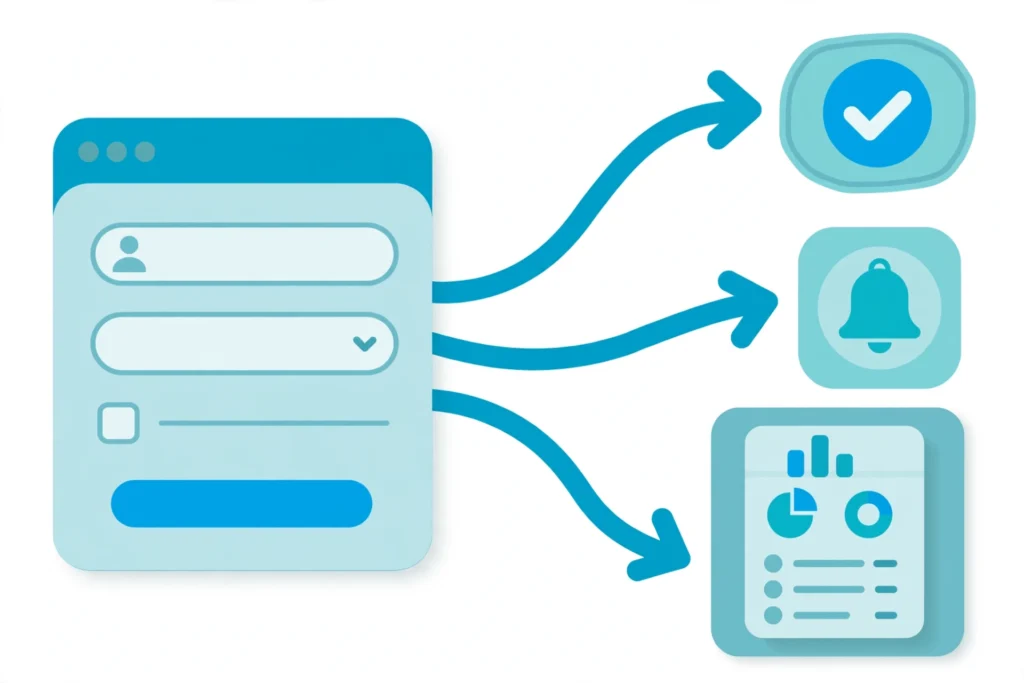
Most teams do not have a form problem. They have a follow-up problem. A client submits a form, then someone copies the details into email, then into a spreadsheet, then into a CRM, then chases a manager for approval. Every manual step is a chance to forget, delay, or mistype something. JotForm workflow automation removes those steps, so the form itself starts the work.
What JotForm workflow automation actually does
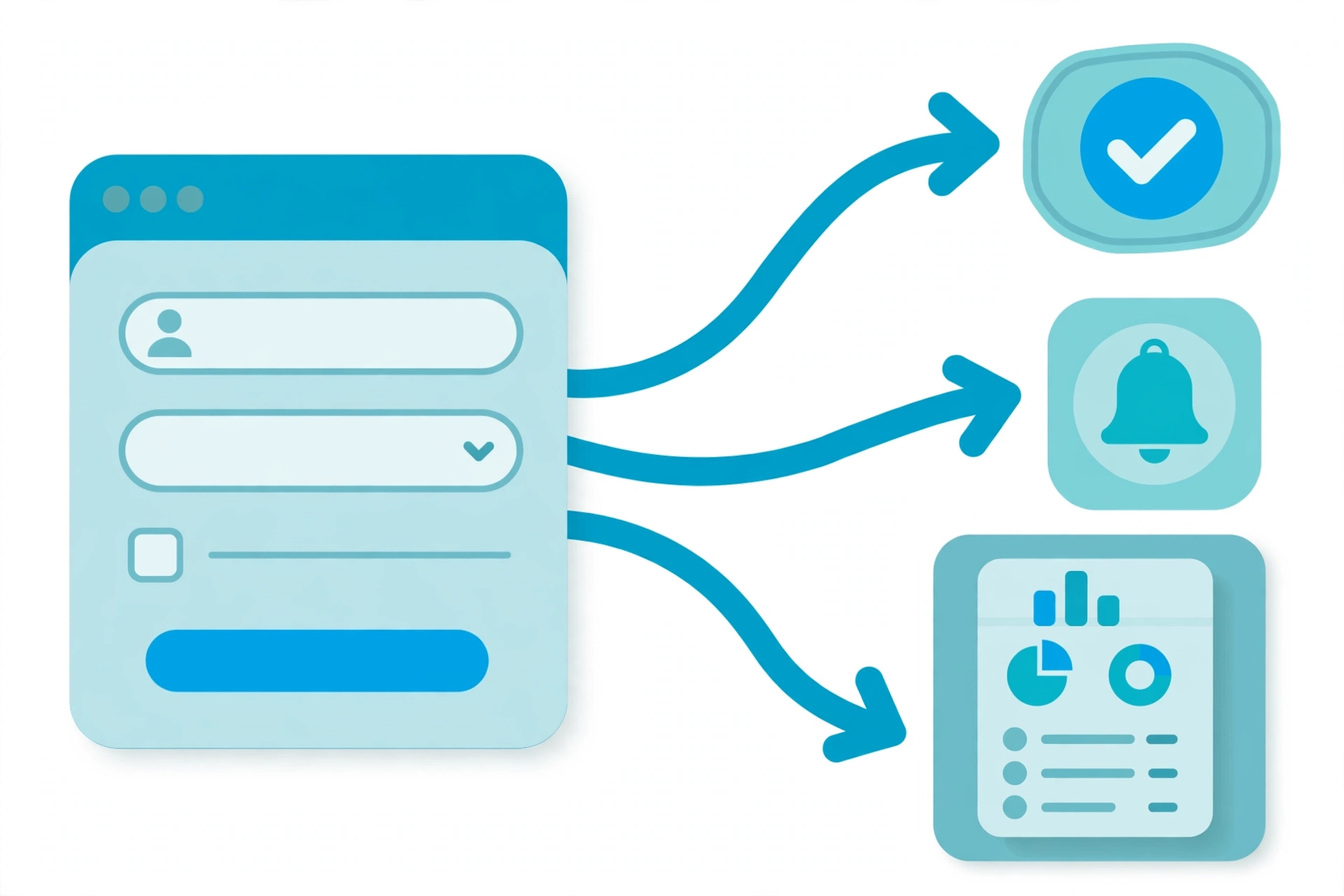
JotForm workflow automation connects three things: the submission, the decision, and the next system. When a form is submitted, JotForm can route it to the right person, send the right notification, update the right record, and log the result, without anyone retyping data.
A practical workflow has four parts. First, capture: the form collects clean, structured data with required fields, conditional logic, and validation. Second, route: approvals go to the right manager based on answers, such as amount, department, or location. Third, notify: the requester, approver, and team each get a clear message with what they need to do. Fourth, sync: the approved data lands in the CRM, spreadsheet, or project tool, with the same field names every time.
A real example: client onboarding that used to take a week
A small service business used a PDF onboarding form. A new client filled it out, emailed it back, and an admin retyped the details into the CRM, then emailed the manager for approval, then emailed the client to confirm. The average onboarding took 5 to 7 days, and about one in five files had a typo in an email or phone number.
We rebuilt it as a JotForm workflow. The client fills one online form with conditional sections for company or individual. On submit, JotForm sends the client an instant confirmation with a summary. It routes the request to the account manager for approval. If the deal is above a threshold, it also routes to a senior approver. Once approved, the data syncs to the CRM, creates a task for kickoff, and notifies the team. The same onboarding now takes under a day, and typos dropped because data is entered once, by the client, and never retyped.
Approvals without email chains
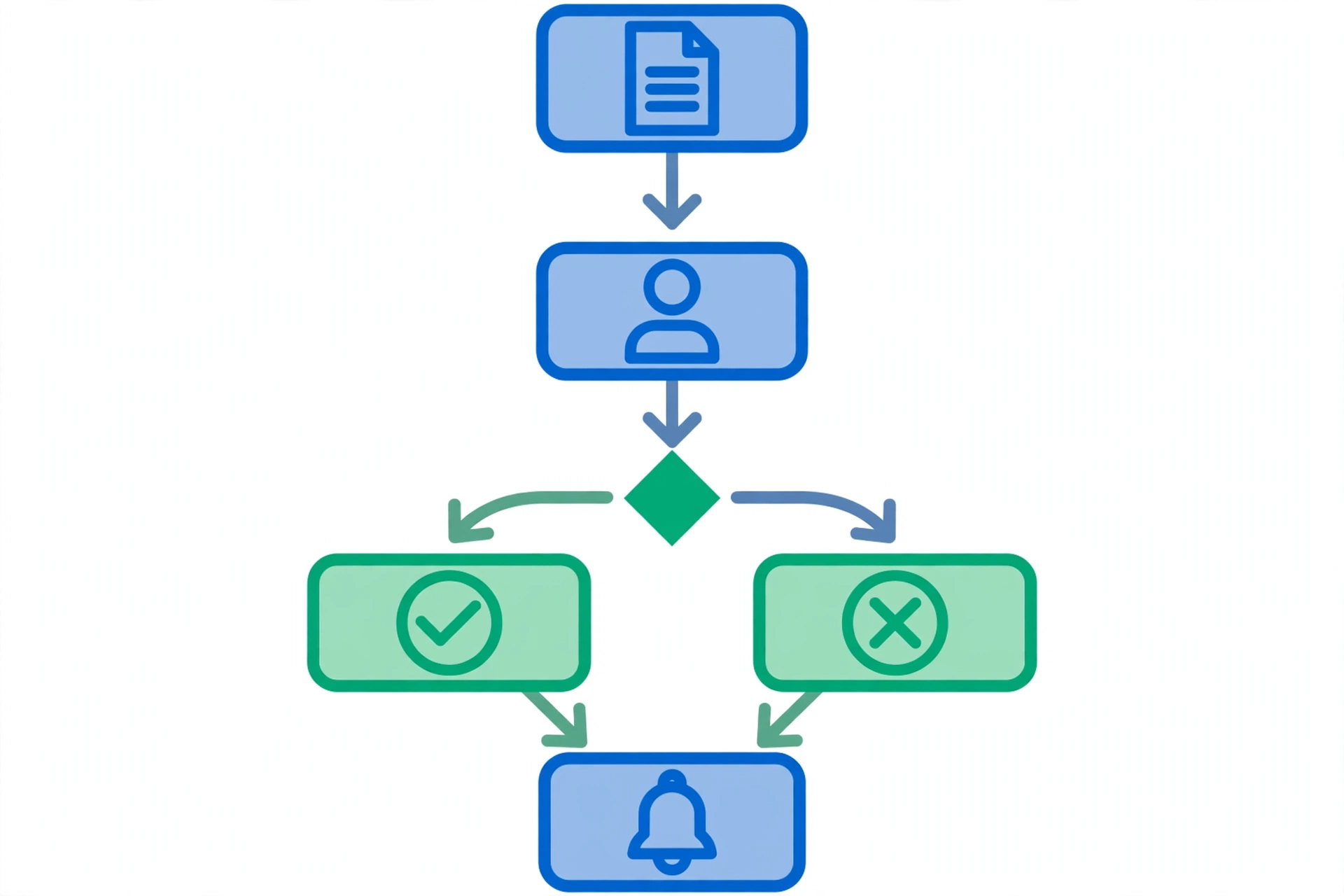
Approvals fail when they live in email threads. JotForm Approvals lets you build a clear chain: submit, review, approve or reject, with comments and a full history. You can set parallel approvals when two people need to sign off at the same time, or sequential approvals when one decision depends on another.
Two rules make approvals work. First, every approval step needs one owner and one deadline. Second, the approver should see only what they need to decide, not a 40 field form. Use conditional logic to show the relevant section, and include the key fields in the approval email: who requested it, what it costs, and what happens if it is approved.
JotForm workflow automation for notifications people actually read
Notification automation is not about sending more email. It is about sending the right message to the right person at the right time. JotForm lets you set conditional notifications, so a high value request alerts a senior manager, while a standard request goes to the normal queue.
Keep each notification short. Subject line: what it is and what action is needed. Body: the key fields, a link to approve or view, and the deadline. Send a confirmation to the submitter too, so they know it worked and what happens next. That one message cuts most “Did you get my form?” emails.
CRM sync without manual work
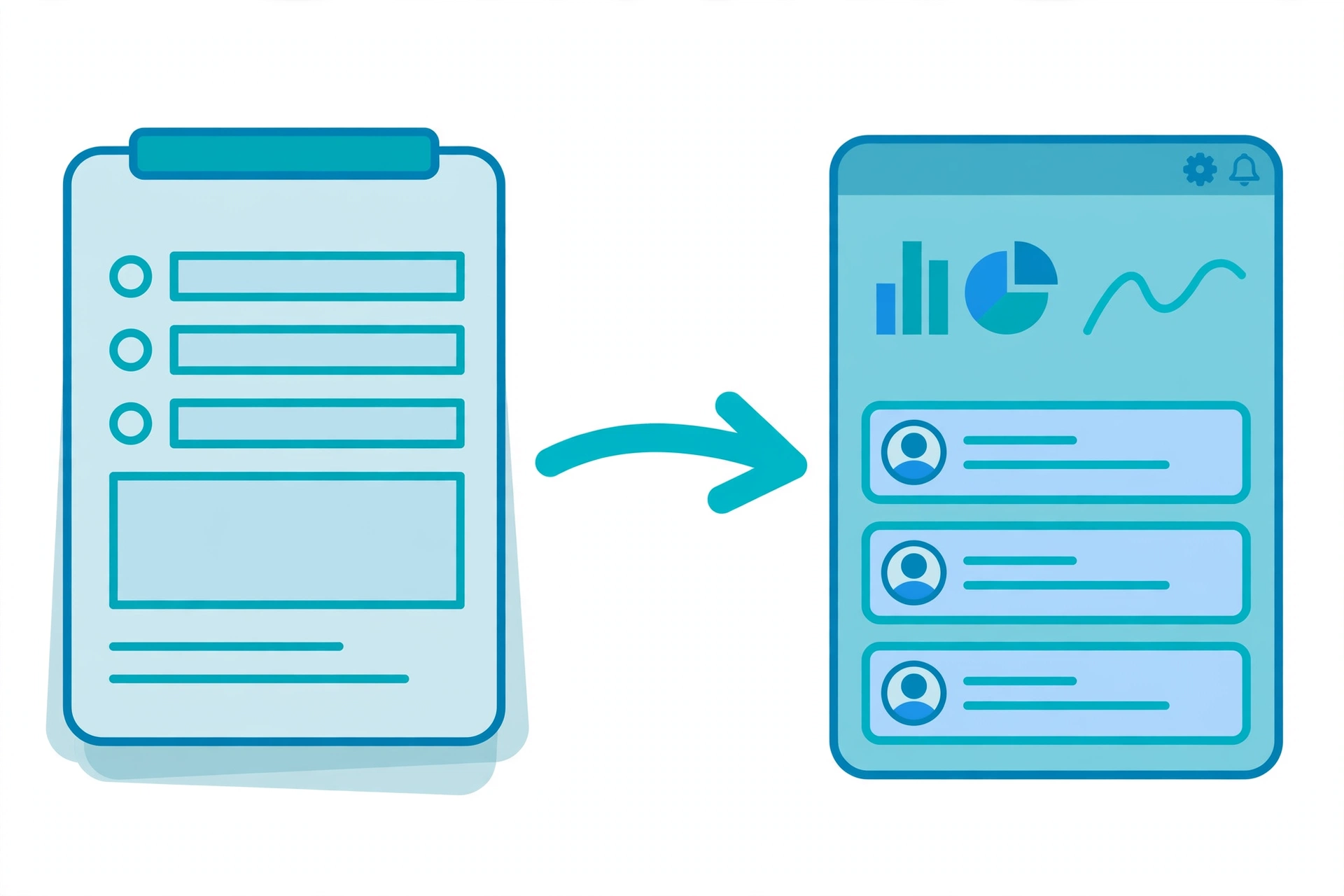
CRM sync is where most teams save the most time. Instead of copying form data into HubSpot, Salesforce, Zoho CRM, Pipedrive, or Monday, JotForm can push the submission directly, map fields once, and keep the data consistent.
Before you connect, decide three things. First, which form fields map to which CRM fields, including custom fields for source, service type, and budget. Second, what should happen on duplicate contacts: update, create a new deal, or flag for review. Third, who owns the CRM record after sync, so follow-up does not fall through the cracks. Test with five real submissions before you go live, and check that names, emails, phones, and amounts land exactly as expected.
Common JotForm workflow automation mistakes to avoid
The most common mistake is automating a broken process. If the form asks for the wrong fields, automation just moves bad data faster. Fix the form first: remove fields you never use, make key fields required, and use conditional logic to hide irrelevant sections.
The second mistake is too many notifications. If everyone gets every submission, everyone ignores them. Route by answer, and send summaries where a full alert is not needed.
The third mistake is no fallback. If an approver is on leave, the workflow should reassign or escalate after a set time. Build that rule on day one, not after a request sits for two weeks.
How to start
Start with one workflow, not five. Pick the form that creates the most manual work: onboarding, leave requests, expense approvals, quote requests, or support tickets. Map the current steps on one page, then rebuild them in JotForm with approvals, notifications, and CRM sync. Measure time saved for two weeks, then roll the same pattern to the next form.
If you want this JotForm workflow automation built for you, book a free 30 minute discovery call. We will review your current form, agree on scope, timeline, and a fixed quote before any work starts.
FAQ
How long does it take to automate a JotForm workflow?
A single form with approvals and notifications usually takes a few days. A full workflow with CRM sync and multiple approval paths takes longer, depending on the number of forms and integrations.
Does JotForm work with my CRM?
JotForm integrates with most major CRMs, including HubSpot, Salesforce, Zoho CRM, and Pipedrive, plus tools like Google Sheets, Slack, and Monday. If your tool is not listed, mention it on the free call and it can be assessed before quoting.
Can approvals be HIPAA compliant?
Yes, with the right JotForm plan and settings, including encryption, access controls, and audit trails. Healthcare forms need careful setup, so scope them separately.
What does it cost?
Pricing is fixed per project, not hourly, with a minimum of 100 dollars. The final quote depends on scope and complexity, and is confirmed after the free discovery call.
Sources
- JotForm Approvals documentation, JotForm official site
- JotForm integrations directory, JotForm official site
- Internal project experience, Muhammad Umar Farooq, umar.com.pk
Want to try JotForm? Get started with JotForm here.
Disclosure: This article contains affiliate links. If you buy through them, I may earn a commission at no extra cost to you.
Pingback: Hire JotForm Developer Cost in 2026: What to Expect